
Guide
Resize Presets
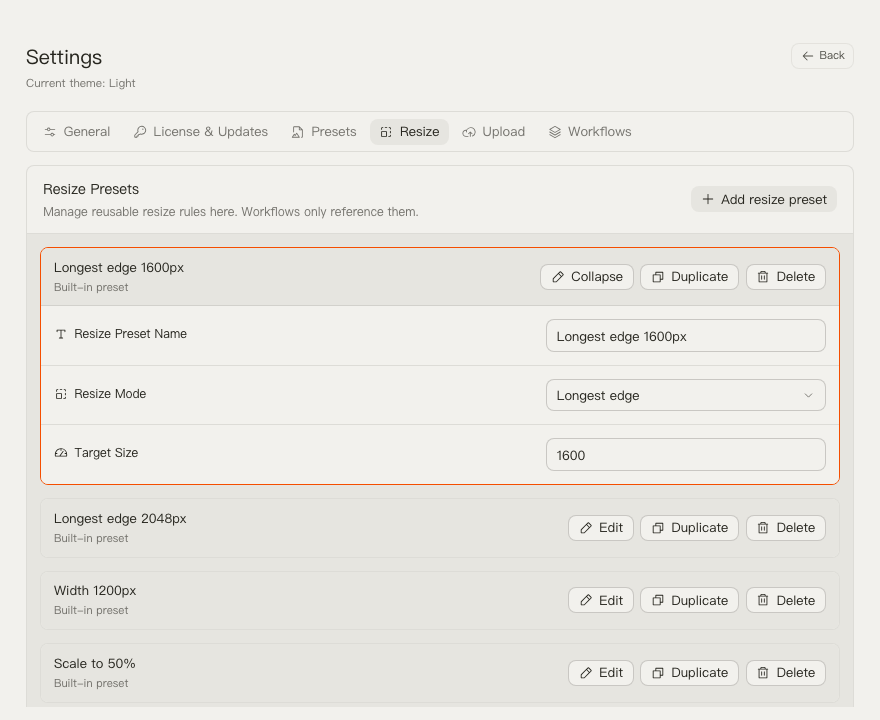
Resize presets define dimension changes that run before compression. They are optional in workflows and reusable across many workflows.
Edit a Size & Crop Preset
Use this path when a workflow should change image dimensions before compression.
- Open Settings.
- Select Size & Crop Presets.
- Click Edit on an existing preset, or click Add size & crop preset.
- Change the preset name if needed.
- Choose the resize mode.
- Enter the value for that mode.
- Return to Settings -> Workflows if a workflow should use this preset.
Processing Modes
- Longest edge: keep aspect ratio and limit the longest side.
- Width: set a target width and preserve aspect ratio.
- Height: set a target height and preserve aspect ratio.
- Scale: resize by percentage, such as 50%.
- Crop to frame: center-crop to a fixed output frame, such as 1080 × 1350.
Crop-to-frame keeps the requested aspect ratio and does not upscale smaller images. It removes edge content from the center crop, so review the selected frame before running a batch.
Use a Resize Preset in a Workflow
Editing a resize preset does not automatically add resize to a workflow. Compression output format and compression level still come from a separate Compression Preset.
- Open Settings -> Workflows.
- Expand the workflow with Edit.
- Click Add resize step if the workflow does not have one.
- Select the Resize step.
- Choose the resize preset.
- Click Use now if this workflow should be active in the main window.
Resize always runs before compression. If you remove the resize step, the workflow keeps original dimensions.
Built-In Size & Crop Presets
TinyOwl includes these starting points:
- Longest edge 1600px
- Longest edge 2048px
- Width 1200px
- Scale to 50%
- Square 1080 × 1080
- Portrait 1080 × 1350
- Vertical 1080 × 1920
- Landscape 1920 × 1080
- Share 1200 × 630
Notes
- Use proportional presets for repeated dimension targets and crop presets for fixed output frames.
- Keep names task-oriented, such as “Blog width 1200”.
- Use compression presets for output format and compression level; use size and crop presets only for dimensions and framing.