
Guide
Workflows
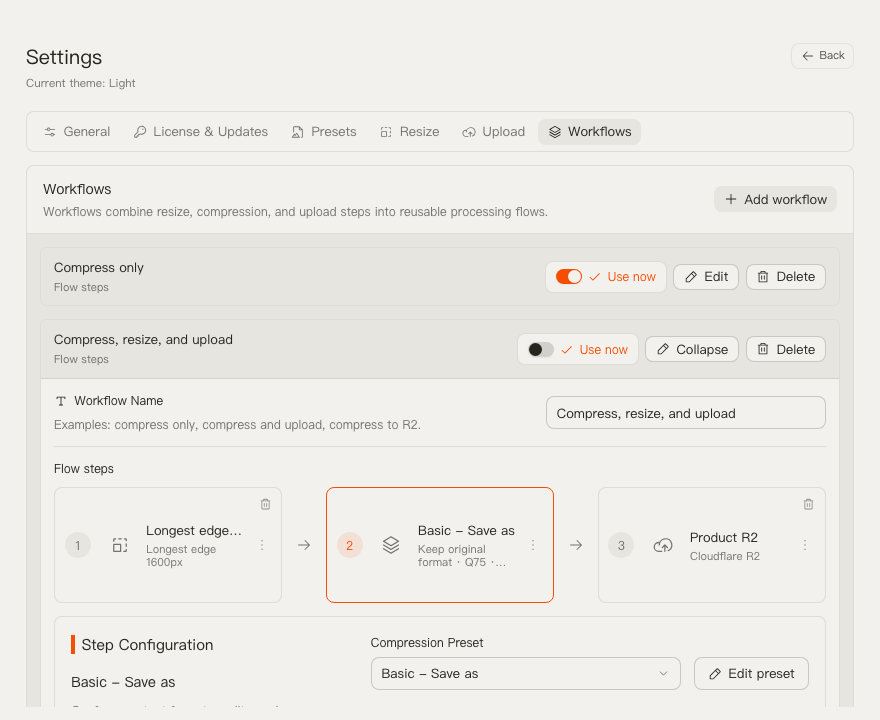
A workflow is the reusable run plan used by the main window. It can include resize, compression, and upload steps in a fixed order.
Workflow Structure
TinyOwl workflows always follow this order:
Resize -> Compression -> UploadResize is optional. Compression is required. Upload is optional. The main window runs the selected workflow; Settings -> Workflows is where you create and edit workflows. If you are new to the flow, start with the Quick Start.
Create a Workflow
- Open Settings.
- Select Workflows.
- Click Add workflow.
- Expand the new workflow with Edit.
- Rename it based on the real task, such as “Blog WebP upload” or “Resize 1600 and save”.
- Configure its steps.
- Click Use now if it should become the active workflow in the main window.
Edit Workflow Steps
To edit a workflow:
- Open Settings -> Workflows.
- Expand the workflow with Edit.
- Click a step in the visual flow.
- Edit the selected step in the configuration panel below.
For the Resize step:
- Click Add resize step if the workflow does not have one.
- Select a resize preset.
- Use Edit resize preset if the preset itself needs different dimensions.
- Remove the step if this workflow should keep original dimensions.
For the Compression step:
- Select a compression preset.
- Use Edit preset if output format, compression level, save behavior, or filename behavior needs to change.
- This step cannot be removed.
For the Upload step:
- Click Add upload step if the workflow should upload compressed results.
- Select an upload provider.
- Choose upload filename strategy.
- Set the upload path template.
- Remove the step if this workflow should only save files locally.
Select the Active Workflow
There are two ways to choose the workflow used by the main window:
- In Settings -> Workflows, turn on Use now for the workflow.
- In the main window, select the workflow from the workflow strip.
The active workflow controls the run button. If it has an upload step, the button runs compression and upload. If it has no upload step, it runs local compression only.
Delete a Workflow
- Open Settings -> Workflows.
- Find the workflow.
- Click Delete.
- Confirm the dialog.
TinyOwl keeps at least one workflow, so the delete action is disabled when only one workflow remains.
Good Workflow Names
Name workflows by the task they perform:
Compress onlyWebP for websiteResize 1600 and saveResize and upload to R2AVIF archive copy
Avoid names that only describe one parameter, such as q75, because a workflow may also include resize and upload behavior.